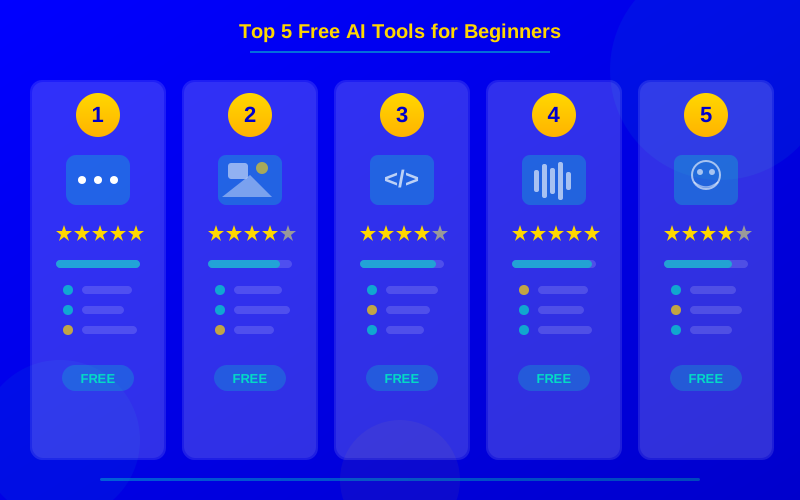
New to AI? These five free tools—ChatGPT, Gemini, Copilot, Canva AI, and Grammarly—are the perfect starting point. Learn what each does, who it's for, and how to get started today.
ChatGPT's free tier handles 80% of everyday AI tasks—writing, research, brainstorming, and coding help.
Google Gemini processes text, images, and documents at once with a 1-million-token context window at no cost.
Microsoft Copilot gives you free access to GPT-4-class AI directly inside Edge, Windows, and Office web apps.
Canva AI generates social media designs, presentations, and short videos in seconds—free for up to 50 AI uses per month.
Grammarly's free tier catches 250+ types of grammar errors and rewrites awkward sentences instantly across any website.
AI isn't just for tech experts anymore. Right now, some of the most powerful AI tools in the world are completely free. You don't need to install anything complicated. You don't need a computer science degree. You just need a browser and five minutes.
This guide covers the five best free AI tools for beginners in 2026. Each one does something different. Together, they handle writing, research, design, editing, and everyday productivity. If you've already explored ChatGPT 5's newest features, you'll recognize one familiar name—but there's a lot more to discover.
Why Start With Free AI Tools
Paid AI tools can cost $20 to $100 per month. That's a big commitment before you know what you actually need. Free tools let you experiment without risk.
The free versions of these five tools are surprisingly capable. ChatGPT's free tier handles most everyday writing tasks. Canva AI generates real designs. Grammarly catches errors across every website you visit.
Starting free also teaches you what matters. You'll learn which features you use daily versus which ones sound cool but collect dust. That knowledge saves you money when you eventually upgrade.
1. ChatGPT Free Tier — Your AI Writing Partner
ChatGPT is the tool most people think of when they hear "AI." The free tier gives you access to GPT-4o mini, which handles writing, research, brainstorming, coding help, and general questions.
What it does best: Writing emails, explaining complex topics, generating ideas, summarizing long documents, and helping with homework or work projects.
Who it's for: Everyone. Students, professionals, writers, small business owners, and curious learners. If you can type a question, you can use ChatGPT.
Feature
Free Tier
Plus ($20/mo)
Model
GPT-4o mini
GPT-5 + GPT-4o
Daily messages
~40 messages
Unlimited
Image generation
Limited
Unlimited DALL-E
Web browsing
Yes
Yes + Deep Research
File uploads
Yes
Yes
Custom GPTs
Use only
Create + use
Beginner tip: Start with simple prompts. "Write a professional email declining a meeting" works better than long, complicated instructions. You'll naturally learn to write better prompts as you go.
2. Google Gemini — AI That Lives in Your Google Apps
Google Gemini is Google's answer to ChatGPT. What makes it special for beginners is how deeply it connects to Google's ecosystem. If you already use Gmail, Google Docs, or Google Drive, Gemini works right inside those apps.
What it does best: Researching topics with real-time web access, analyzing uploaded documents and images, summarizing YouTube videos, and integrating with Google Workspace.
Who it's for: Students, researchers, and anyone who already lives in Google's ecosystem. Especially strong for people who need to analyze images or PDFs alongside text.
Each bar shows how strong a tool is in that category. Longer and darker bars mean better performance.
Gemini's biggest advantage is its context window. It can process up to 1 million tokens at once. That means you can upload an entire textbook and ask questions about it. No other free tool comes close to that capacity.
3. Microsoft Copilot — AI Built Into Windows
Microsoft Copilot runs on GPT-4 technology. It's built into Windows 11, the Edge browser, and the free web versions of Office apps. If you use a Windows computer, you already have it.
What it does best: Answering questions with cited sources, generating images with DALL-E 3, helping with Office documents, and providing quick research summaries.
Who it's for: Windows users who want AI help without signing up for another service. Great for students and office workers who need quick answers with source links.
Copilot stands out because it cites its sources by default. Every factual answer includes links to where the information came from. That makes it easier to verify claims and follow up on research.
4. Canva AI — Design Without Design Skills
Canva has been a popular design tool for years. Now its AI features take it to another level. You can describe what you want, and Canva creates it—social media posts, presentations, logos, and short videos.
What it does best: Creating social media graphics, building presentations, generating background images, removing photo backgrounds, and resizing designs for different platforms.
Who it's for: Anyone who needs visuals but doesn't know Photoshop. Small business owners, students making presentations, social media managers, and bloggers. If you're building an AI-powered workflow, Canva AI fits perfectly in the design step.
Canva AI Feature
Free Plan
Pro ($13/mo)
AI image generation
50 uses/month
500 uses/month
Background remover
No
Yes
Magic Resize
No
Yes
Brand Kit
Limited
Full
Templates
250K+
610K+
Cloud storage
5 GB
1 TB
5. Grammarly — AI Writing Assistant That Goes Everywhere
Grammarly checks your writing for grammar, spelling, clarity, and tone. The free version works as a browser extension and sits inside every text box on the web—emails, Google Docs, social media posts, and more.
What it does best: Catching grammar and spelling mistakes, suggesting clearer phrasing, adjusting tone, and rewriting awkward sentences. If you're interested in how AI handles writing tasks across tools, check out our guide to AI content creation tools.
Who it's for: Writers, students, professionals, and anyone who writes in English. Especially helpful for non-native English speakers who want to sound natural and polished.
The free tier catches over 250 types of errors. That covers grammar, punctuation, spelling, and basic clarity suggestions. It works in real time as you type, which means you fix mistakes before hitting send.
Quick Comparison: All Five Tools
Tool
Best For
Platform
Free Limits
ChatGPT
Writing, research, coding
Web, mobile
~40 messages/day
Google Gemini
Research, document analysis
Web, Google apps
Generous daily limit
Microsoft Copilot
Cited answers, images
Windows, Edge, web
30 chats/session
Canva AI
Design, presentations
Web, mobile
50 AI uses/month
Grammarly
Grammar, clarity, tone
Browser extension
250+ error types
How to Pick Your First Tool
Don't try all five at once. Pick one or two that match what you do most often. Here's a simple decision path:
Start with the tool that matches your most common task. You can always add more later.
Write a lot? Start with ChatGPT and Grammarly together. ChatGPT drafts, Grammarly polishes.
Need visuals? Canva AI is your first stop. Add ChatGPT later for writing the text that goes on your designs.
Do research? Gemini's massive context window and real-time web access make it the best free research tool available. You can upload entire documents and ask targeted questions.
Use Windows? Copilot is already installed. Press the Copilot key on your keyboard (or Win+C) to get started instantly.
Tips for Getting the Most Out of Free AI
Free tools have limits. Here's how to work within them and still get great results.
Be specific with your prompts. "Help me write a professional LinkedIn post about my new project management certification" gets much better results than "write something for LinkedIn." The more context you give, the better the output.
Save your best prompts. When you get a great result, save the prompt you used. Build a small collection of prompts that work for your common tasks. This saves time and keeps quality consistent.
Combine tools in a chain. Use ChatGPT to brainstorm ideas, then Canva AI to design visuals, then Grammarly to polish the final copy. Each tool handles what it's best at. Learn more about this approach in our guide to building AI workflows.
Check the output. Free AI tools are impressive, but they make mistakes. Always review facts, check sources, and proofread before publishing or submitting anything. AI is your first draft partner, not your final editor.
When to Upgrade to Paid Plans
The free tiers are enough for most beginners. Consider upgrading when you hit specific walls:
You hit daily limits regularly. If you're running out of ChatGPT messages or Canva AI uses every day, a paid plan removes that friction.
You need advanced features. Deep research in ChatGPT, background removal in Canva, tone detection in Grammarly—these premium features justify the cost if you use them daily.
Your output quality matters professionally. Paid tiers give you access to stronger models, faster processing, and more refined outputs. For professional content, that difference adds up.
Start Simple, Build From There
You don't need to master every AI tool at once. Pick one from this list—whichever matches your biggest daily task—and use it for two weeks straight. You'll be surprised how quickly it becomes second nature.
Once you're comfortable, add a second tool. Then a third. Before long, you'll have a personal AI toolkit that saves you hours every week. And the best part? It won't cost you a cent to start.
Ready to go deeper? Explore our full roundup of AI tools for content creation to see how these free options compare to premium alternatives.
free AI toolsAI for beginnersChatGPT freeGoogle GeminiMicrosoft CopilotCanva AIGrammarly AIgenerative AIAI tools 2026beginner guide
Frequently Asked Questions
Yes, every tool on this list has a free tier you can use without entering a credit card. ChatGPT, Gemini, Copilot, Canva AI, and Grammarly all offer generous free plans. The paid versions add extras like faster speed, longer outputs, or more monthly uses, but the free tiers are powerful enough for most beginners.